
How to choose, configure and maintain the perfect high-performance workstation for your workflow

Discover how to design the perfect custom workstation: Threadripper vs Xeon vs Epyc, GPUs, ECC RAM, storage, cooling, upgrade planning and real-world tips from Punch Technology.

Building a high-performance workstation isn’t just about picking powerful parts off a list. It’s about understanding your specific workloads, planning for real-world bottlenecks, and balancing performance, reliability and upgradeability; all while keeping thermals, noise and budget in check. For many of our customers, off-the-shelf systems simply don’t deliver the reliability, performance, and flexibility that they require. That’s why, at Punch Technology, we pride ourselves on taking time to understand customer requirements and plan out the best possible solution for your requirements. Not sure if a workstation is for you? Read our guide on workstations vs desktops vs servers.

Here at Punch, we’ve spent years designing and building bespoke systems for everyone from 3D artists and VFX studios to AI researchers, architects and software developers. This guide distils what we’ve learned: what actually matters, what doesn’t, and why a “custom workstation” should be a consideration for anyone with exacting standards for the performance of their hardware.

Whether you’re comparing AMD Threadripper, Intel Xeon or AMD Epyc, building around RTX GPUs, or deciding if you really need ECC RAM, this guide aims to help you make confident, technically informed decisions.

CONTENTS:

Hardware considerations: Choosing the right components

Hardware considerations are going to largely depend on the application you’ll be using your system for, specific requirements you have, any brand preferences you may have and budgetary considerations. 

A high-end workstation typically requires more high-end components than a normal desktop that will be used for working on documents or browsing the web, due to the nature of the workloads that you will be carrying out. We cover this in more detail in the section on application specific planning. For now, the major components you will need to consider are:

CPU: Brains of the build

The Central Processing Unit (CPU) is responsible for carrying out the instructions that make your workstation operate, controlling the flow of data and instructions needed to carry out commands.

When it comes to your workstation build, there are a few things to consider in terms of your CPU.

Clock speed vs. core count

An important aspect to be aware of is clock speed vs core count. Your CPUs clock speed (measured in GHz) gives an indication of how many instructions a core can execute per second, whereas the core count is the number of processing units within a CPU. You will likely have heard the phrase, quad-core, which refers to a CPU with 4 cores. 

Why this matters is that some tasks need to be carried out in sequence (single-threaded), and these tasks make better use of a higher clock speed, but some tasks can be processed simultaneously (multi-threaded) and in those instances, a higher core count is more beneficial. 

Typical tasks that you might need a workstation for might look like this:
User Typical workflow Single-threaded / Multi-threaded What this means for your build
Animator Scene setup, rigging, keyframing, viewport scrubbing Mostly single-threaded Higher clock speed CPU = snappier viewport and real-time responsiveness
Rendering final frames (CPU render) Highly multi-threaded Many cores speeds up render time
Games designer Level design, asset creation, scripting Mostly single-threaded Fast clock speed improves compile and editor performance
Light baking, final build / export Multi-threaded Multiple cores help reduce baking and build times
Architect CAD modelling, drafting (AutoCAD, Revit, Archicad) Mostly single threaded Fastest possible single core performance keeps viewport responsive
Photorealistic rendering (V-Ray, Lumion) Highly multi-threaded More cores = faster renders; consider multi-GPU for GPU renders
AI and Data science Model training, data preprocessing Highly multi-threaded / GPU parallel Many cores and large GPU VRAM; benefits from multi-GPU in some frameworks
Experiment scripting, notebooks (Jupyter) Often single-threaded Snappier CPU clock speed helps interactive work
Video editing Timeline editing, scrubbing, effects previews Mixed Single-threaded for timeline responsiveness; GPU accelerates playback and effects
Rendering / export (H.264, ProRes etc) Multi-threaded and GPU-accelerated Multiple cores and strong GPU speed up export
Simulation Physics, CFD, FEA workloads Highly multi-threaded Many cores reduce simulation solve times; benefits from ECC RAM
Software development Writing code, IDE responsiveness Mostly single-threaded High clock speed keeps IDE snappy
Compiling large projects, running builds Mixed (often multi-threaded) Extra cores reduce compile time, especially in large C++/Java builds
3D rendering Interactive modelling, sculpting, texturing Mostly single-threaded Higher single core speed = smoother viewports
Final CPU render Highly multi-threaded Many cores dramatically cut render times; consider ECC RAM
Types of CPU

Commercial options

At the lower end of the workstation scale, you’re probably looking at the Intel Core Ultra range or something like the AMD Ryzen 9 9950X. Intel’s core Ultra range has been developed with high-performance users in mind, excelling at multi-core and multi-threading applications, making them a great choice for CPU rendering workflows. The Ryzen 9 9950X is also an excellent choice for creative tasks, tackling most workflows with ease.

Workstation grade CPUs

Threadripper Pro:

Now touting the 9000 series, AMD’s Threadripper Pro has long been the go-to choice for high-end workstations and challenging workflows, thanks to their capacity to manage extreme parallel workloads and the large memory capacity, meaning they can tackle most high-performance tasks easily. If you have a requirement for lots of high performance cores and huge amounts of memory, then it is worth considering a Threadripper.

Intel Xeon:

Intel Xeon processors have been designed to deliver excellent performance in demanding workloads. Thanks to large quantities of L3 cache, Xeon CPUs are typically much faster in professional applications than a commercial Intel processor, and with support for Error Checking and Correction (ECC) RAM, making them an excellent choice if stability and security are a concern. With the capacity to scale to multiple sockets, a Xeon processor is excellent when you’re dealing with workloads that require as many CPU cores as possible. Intel Xeon processors also make use of AVX-512 instruction set, allowing the CPU to process multiple data elements in parallel using 512-bit wide vector registers. Workflows such as scientific computing, AI/Deep learning, cryptography and financial modelling can benefit from this instruction set. 

AMD Epyc:

Reserved for servers, the AMD Epyc processors are designed to handle demanding AI workloads, and challenging simulation and data analysis. With extremely large core counts and memory bandwidth, the Epyc chips are a fantastic choice for high performance computing tasks.

Processor family Why you’d choose it Typical strengths Best suited applications
AMD Threadripper (eg. 9000 series) Creative-focused HEDT CPU with high clocks and lots of cores; cost-effective vs server chips
  • Up to 64 cores
  • Higher boost clocks than PRO
  • Overclocking support
  • Great PCIe lane count (but less than PRO)
  • 3D modelling and sculpting
  • Game dev, video editing, VFX
  • Mixed workloads needing both single and multi-thread
AMD Threadripper PRO (eg. 9000 WX series) Adds enterprise features: 8-channel memory, full ECC RAM support, more PCIe lanes, workstation reliability
  • Same max cores (up to 64)
  • 8-channel memory (vs 4) for huge bandwidth
  • Up to 128 PCIe lanes (ideal for multi-GPU, NVMe arrays)
  • Official support for ECC RAM
  • High-end VFX, simulation and rendering
  • AI and data science workstations
  • Projects needing huge RAM bandwidth and capacity
Intel Xeon W (W-2400 / W-3400) Workstation-class CPUs with high clocks and ECC RAM; good mix of cores and per-core performance. Niche scientific computing applications
  • Up to 56 cores
  • ECC RAM support
  • High clock speeds make this great for lightly-threaded tasks
  • CAD, architecture, engineering
  • Visual effects, media and entertainment
  • Mixed creative workloads
Intel Xeon Scalable (Silver, Gold, Platinum) Server-focused CPUs for extreme reliability and scalability; dual-CPU support
  • Dual-CPU support; up to 112 cores
  • Huge memory capacity
  • Broad ISV certification
  • Simulation, scientific computing
  • CPU render farms
  • Large enterprise workloads
AMD Epyc (eg. Genoa, Bergamo) Massive core counts, huge memory bandwidth, designed for server and HPC; very strong price per core
  • Up to 128 cores (Bergamo)
  • 12-channel memory (huge bandwidth)
  • Enterprise reliability
  • Great price per core vs Xeon Scalable
  • AI model training
  • CFD, FEA, Scientific workloads
  • Heavy multi-threaded compute and virtualisation

Additional considerations:

  • Threadripper PRO brings you closer to “server DNA” but keeps workstation-friendly high clocks
  • Xeon W is ideal for single-socket workstations; Xeon Scalable is dual-socket server hardware
  • Epyc makes most sense for workloads scaling to dozens or hundreds of threads, where single thread-speed matters less

If your workflow is mainly creative and interactive, Threadripper or Xeon W often make the best balanced choice. If you’re building for extreme compute, simulation or AI, Threadripper PRO, Xeon Scalable or AMD Epyc can deliver huge core counts, memory capacity and bandwidth, but often at lower clock speeds.

Single CPU vs dual CPU builds: who actually needs them?

At some point in your workstation build you may question if you need dual CPUs rather than just one. Whilst a single CPU is suitable for most requirements, and is more cost-effective than a dual CPU setup, the benefits of a dual CPU system are:

Greater processing power: With the ability to operate independently or tackle parallel tasks in sync, a dual CPU setup is often used in applications that require higher-than-normal computational power such as data analysis of enormous datasets or running multiple rendering tasks simultaneously.

Better multitasking: Run multiple applications at the same time with very little performance impact. Essential on tasks where stability is a requirement.

Powering virtual machines: If you’re running multiple virtual machines and need flexible resource allocation, a dual CPU setup gives you more physical resources.

Linearly add memory channels and bandwidth and PCIe lanes: As you add more socketed CPUs, you linearly increase the memory channels and bandwidth, and PCIe lanes that you have access to, meaning you can add more RAM, GPUs and SSDs. It’s worth noting though, that if you have more than one CPU, and your CPU needs to access memory that is not in its own channel, it will be slower to access that memory. Memory is local to the CPU it is physically connected to.

We find the majority of our customers are best served with a single CPU setup, and opting for more cores than going for a dual CPU setup, especially as the core count of single CPUs continues to increase. This will give you a balance of performance, scalability and cost, as you won’t need specialist motherboards, cooling solutions or the cost of power consumption. 

Where you might consider a dual CPU setup is if you are doing large quantities of 4K video editing or heavy 3D rendering, if you are running multiple virtual workstations across your business or using your workstation for server applications, or if you are working in big data or machine learning with huge datasets.

Key buying decisions
Clock speed vs core count Rendering, exporting and model training are better served by higher core counts
Commercial or workstation Choose workstation if you need more cores or memory than are typically provided by commercial CPUs
Single or dual CPU Most people will find a single CPU sufficient, only opting for dual CPUs if you are doing complex editing and rendering
GPU: Graphics and compute power

Dedicated graphics cards have become increasingly important in modern workstation builds as workloads which were historically CPU reliant, have now become more reliant on the GPU. Depending on your usage, you may require one or more GPUs in order to offload graphical processing tasks, improve performance in areas where you need fast rendering times or need to work on complex VFX or simulations, or even if you plan to use multiple, high-resolution displays.

Not all graphics cards are created equal however, and some have been designed to be more efficient for gaming, while others are designed for more intense, HPC workloads. With considerations like commercial or Pro models, VRAM quantities and performance under load, we recommend having a solid understanding of your use-case before making a decision on a dedicated graphics card, something our expert team can help with. 

We’ve put together a quick guide for where we would typically recommend an integrated graphics card, dedicated graphics card or multi-GPU setup, but please bear in mind that this is for guidance, and the actual advice is likely to vary depending on your specific use case.

Application area Needs dedicated GPU Could run on integrated GPU Benefits from multi-GPU? Why / notes
3D rendering (V-Ray, Octane, Redshift, Cycles GPU, Arnold GPU) Yes No Yes Rendering scales across multiple GPUs = faster final frames
3D modelling and sculpting (Blender, Maya, Zbrush) Strongly recommended Technically possible but painful Rarely Viewport is GPU accelerated; integrated GPUs struggle with complex meshes
Video editing (Premiere Pro, Resolve, After Effects) Yes Basic cuts might run Sometimes GPU accelerates playback, effects, encoding; multi-GPU helps mainly in heavy colour grading or noise-reduction
Visual FX and compositing (Nuke, Fusion, After Effects) Yes Very limited Sometimes Complex particle sims and high-res comps can benefit from more GPU memory
Simulation and engineering (CFD, FEA, particle physics) Often Some lightweight solvers Sometimes Some solvers (Ansys, Simulia) can run multi-GPU; depends on solver and licensing
CAD and BIM (AutoCAD, Revit, SolidWorks) Yes Very basic 2D drafting Rarely Mostly single GPU; larger assemblies benefit from pro GPUs with large VRAM
AI and deep learning (TensorFlow, PyTorch) Strongly recommended No Yes Training scales near-linearly across GPUs; multi-GPU setups shine in AI
Software development / IDE use Not essential Yes No GPU only matters if also doing GPU-accelerated builds/tests
Architecture visualisation Yes Limited Sometimes Real-time walkthroughs (Unreal, Twinmotion) and final renders can use multi-GPU
Data science and big data visualisation Recommended Possible Sometimes Large datasets can leverage GPU compute & memory; multi-GPU helpful in some ML workloads
Difference between RTX, RTX “Ada”, Quadro, and gaming GPUs

You will also need to consider whether you need a commercially available graphics card, or a professional level graphics card. Again, this will largely depend on your application, but for a quick overview:

GPU type Why you’d choose it Typical strengths Best suited applications Trade-offs
GeForce RTX (e.g. 5070, 5080, 5090) Highest raw performance per £; great for mixed gaming + creative Strong CUDA / RT cores, high boost clocks, DLSS 4 3D modelling/rendering, video editing, game dev, VR No ECC, less VRAM vs pro, drivers not ISV-certified
RTX “Ada” generation (e.g. RTX 6000 Ada) Latest GPU arch; higher efficiency + AI perf; ECC VRAM Better RT + Tensor cores, lower power per frame Creative uses, AI acceleration, generative tools Gaming drivers unless workstation variant
RTX Pro Blackwell More powerful than Ada (5000, 4000 series); ECC VRAM Up to 96 GB VRAM, DLSS 4 Manufacturing, architecture/engineering, AI, data science
Quadro / RTX A series (e.g. RTX A6000, A5000) Workstation GPUs with ISV-certified drivers ECC VRAM, huge memory (up to 48 GB), strong double-precision CAD, scientific visualisation, film/VFX studios Much higher cost per frame vs GeForce
Gaming GPUs (non-RTX, GTX etc.) Cheapest option; still decent performance Supports CUDA, lower cost Hobbyist rendering, light editing, indie game dev Much lower RT/AI perf, old arch, limited VRAM, no pro drivers

Gaming GPUs give fantastic speed for the money, but risk stability and limited memory in heavy pro workflows.

Quadro / RTX A cards are designed for day-in, day-out reliability with certified drivers; crucial in big studios, less so for freelancers.

RTX “Ada” cards benefit from improved AI cores and efficiency, but still come in both GeForce (consumer) and RTX Ada (workstation) models.

PCIe lanes, cooling and why workstation GPUs behave differently under load

One often-overlooked difference between workstation GPUs (like the Quadro / RTX A series) and gaming-focused GeForce RTX cards is how they handle sustained heavy workloads.

Pro cards are designed for data-heavy applications such as large-scale rendering, simulation, AI inference and CAD, which can saturate the GPU’s bandwidth and memory for hours or even days at a time. To support this, workstation cards typically come with:

  • ECC VRAM (Error-Correcting Code memory) to reduce the risk of silent data corruption during long renders or compute jobs
  • Thermally optimised cooling solutions built not just for short spikes, but for running at or near full load continuously, often leading to quieter, lower-frequency fan noise and better temperature stability
  • Tuned power delivery and lower peak boost behaviour, trading absolute short-burst performance for consistent, predictable performance

In parallel, workstation motherboards and CPUs (e.g., Threadripper PRO, Xeon W) often provide significantly more PCIe lanes. These extra lanes allow you to:

  • Run multiple GPUs at full x16 speed
  • Add high-speed NVMe storage or capture cards without bottlenecking GPU performance
  • Support large RAID arrays, FPGA cards, or specialised accelerators alongside the GPU

For creative professionals or technical users building complex, multi-device systems e.g., multiple GPUs, large NVMe scratch disks and 10GbE networking, this difference in PCIe bandwidth and cooling design can make the system quieter, more stable, and more responsive under real production workloads.

GPU rendering vs viewport performance

When planning or building a workstation, it’s easy to assume that the fastest graphics card will automatically make everything faster, but in reality, there’s a big difference between GPU rendering performance and viewport performance.

Viewport performance is about how smooth and responsive your 3D scene feels while you work:

  • Orbiting around dense models
  • Sculpting or manipulating thousands of polygons
  • Interacting with particle systems, lighting, and shaders in real time

Viewport speed depends heavily on:

  • Single-thread CPU performance: many digital content creation (DCC) apps like Blender, Maya and 3ds Max still run viewport updates and scene evaluation on a single CPU core
  • GPU rasterisation speed: how quickly the card can draw and refresh your scene
  • Driver quality and optimisation: workstation cards like Quadro / RTX A series often have tuned drivers for smoother large-scene handling

So if you do a lot of creative modelling, layout and animation work, a GPU with higher clock speeds and better driver optimisation often feels snappier even if it doesn’t always seem the best in raw rendering benchmarks.

GPU rendering performance, on the other hand, is about raw computational power:

  • How fast your system can process final-quality frames using CUDA, OptiX, or OpenCL
  • Relevant in render engines like Octane, Redshift, Cycles, V-Ray GPU and Arnold GPU

GPU rendering cares about:

  • Number of CUDA cores / stream processors
  • VRAM capacity (large scenes need more memory)
  • Tensor cores / RT cores (for AI denoising and ray tracing)
  • Memory bandwidth and cooling: to keep clocks high under sustained loads

In pure rendering, even “gaming” GPUs like GeForce RTX 5090 can outperform older Quadro cards at a fraction of the cost, but may lack the VRAM and ECC reliability needed for huge, complex production scenes.

Key takeaway:

Viewport interactivity is about smooth creative work; rendering is about brute-force parallel compute. The right workstation balances both: fast CPU clocks, enough GPU VRAM, and reliable drivers so neither creative flow nor final output becomes the bottleneck.

Multi-GPU: do you really need it? When NVLink / PCIe lanes become a bottleneck

For tasks where the computational power of a single GPU simply isn’t enough, you may begin to investigate multi-GPU setups. Having multiple GPUs working in a parallel processing fashion allows you to distribute the workload, leading to faster processing times and the ability to handle larger datasets.

Multi-GPU setups can take many different forms. The most common we see is single-system multi-GPU, which is essentially multiple GPUs installed in one workstation, connected via the motherboard. You might also opt for direct GPU-to-GPU connection, allowing your GPUs to communicate directly through with each other via high-speed connections like Nvidia NVLink or AMD’s Infinity Fabric. The benefit of this direct communication is that it reduces latency, helping you perform tasks faster.

Punch Technology single system, multi GPU

Single-system, multi-GPU

You may opt for network-based GPU clusters which essentially means multiple workstations, each with one or more dedicated graphics card and connected via high-speed networks. This is the type of setup you often see in data centres. You might also try distributed multi-GPU systems: which are GPUs in multiple different locations that are communicating and working on the same task through the use of specialised software. And finally, you might find a hybrid GPU configuration which is multiple, different makes and models of GPUs working together.

Having multiple GPUs can help to speed up heavy computational tasks that are typical in heavy rendering workloads or AI model training. It also improves reliability, as you have a mitigation for the risk of total system failure and you can even assign the different GPUs to complete different tasks, increasing the efficiency of your workflow. While a multi-GPU system can prove costly up-front, in the long term, if you’re going to reach a point where you need the processing power of multiple graphics cards, you can save yourself money by starting out with a system equipped for multiple GPUs, rather than upgrading from a single system, single GPU setup at a later date.

When multi-GPU actually scales well

Certain workloads benefit almost linearly from adding GPUs:

  • GPU rendering in engines like Octane, Redshift, V-Ray GPU, Blender Cycles: each GPU works on separate tiles or frames, nearly doubling throughput.
  • AI and deep learning: training large neural networks can split across multiple GPUs to reduce epoch time, if your dataset fits in combined VRAM and your framework supports multi-GPU (e.g., PyTorch, TensorFlow).
  • Large-scale simulations or scientific compute: that use CUDA or OpenCL to run across multiple cards.

In these cases, a second GPU genuinely can mean a big speedup; sometimes close to 2×, 3×, or more, depending on scaling and overhead.

When it doesn’t help (or helps very little)

Many creative applications, like:

These applications simply can’t spread interactive work across multiple GPUs. At best, they’ll use the primary GPU; the others will sit mostly idle during modelling, editing, or playback.

Even GPU-accelerated plugins (color grading, denoising) often use only a single card unless explicitly designed for multi-GPU.

NVLink and why PCIe lanes matter

When your workload can scale across GPUs, how they communicate and how they connect to the CPU becomes critical.

PCIe lanes:

  • Each GPU typically wants a full x16 PCIe slot.
  • Workstation CPUs like Threadripper PRO (up to 128 PCIe lanes) and Xeon W are better suited for multi-GPU.
  • Consumer CPUs (e.g., standard Ryzen, Core i9) may only have 20–24 lanes total, forcing GPUs to run at x8, which can reduce bandwidth (sometimes noticeable in data-heavy compute, large scenes, or VRAM pooling).

NVLink / SLI bridges:

  • NVLink allows GPUs to share data directly, bypassing the CPU and PCIe bus.
  • Useful in rendering large single scenes (shared geometry/textures) and AI, where GPUs need fast peer-to-peer communication.
  • Only supported on specific workstation GPUs (e.g., RTX A6000) not on gaming cards like RTX 5090.
  • Even with NVLink, total available bandwidth (e.g., 112 GB/s) is lower than on-card memory bandwidth, so VRAM sharing isn’t “free”.
Other trade-offs to know
  • Power and cooling: Two high-end GPUs can draw >800W combined; your chassis must manage heat to avoid throttling.
  • Driver and software support: Not all applications can see or use multiple GPUs, and some see diminishing returns beyond the second card.
  • Cost vs benefit: Buying a single highest-tier GPU (e.g., RTX 6000 Ada) is often better than two mid-range cards if your workflow isn’t truly parallel.

Multi-GPU can be transformative for GPU rendering and AI but it’s not a universal accelerator. To get real benefit, you need: a workload that scales, CPUs and motherboards with enough PCIe lanes, and (for large models or shared scenes) NVLink support.

VRAM considerations for large scenes, AI datasets

When choosing a workstation GPU, raw compute power (CUDA cores, TFLOPS) often grabs the headlines but in production, VRAM capacity can quietly become your biggest real-world limiter.

VRAM (video memory) is where your GPU holds everything it actively uses: geometry, textures, frame buffers, simulation data, neural network weights and activations. If your project or dataset doesn’t fit entirely into VRAM, your GPU is forced to offload data over the much slower PCIe bus or into system RAM, which can massively reduce performance or even cause crashes.

Large 3D scenes and VFX workflows

For 3D rendering, motion graphics, or complex compositing:

  • VRAM stores your mesh data, high-resolution textures, displacement maps, and GPU cache.
  • A single detailed character or environment with 8K textures can eat several GB alone; full production scenes in V-Ray or Redshift can quickly exceed 20–30 GB.
  • High frame-count simulations (particles, fluids) multiply memory needs even further.

As a rule of thumb: if your scenes are big enough that you’re constantly baking or splitting them into layers just to render, you probably need more VRAM.

AI, machine learning and data science

Deep learning models can consume surprising amounts of VRAM:

  • The size of your model (number of parameters), batch size, and precision (FP32, mixed precision, FP16) all directly affect GPU memory use.
  • Larger VRAM allows bigger batch sizes, leading to faster training and better convergence.
  • Some transformers, Generative Adversarial Networks (GANs) or diffusion models simply won’t run at all if they don’t fit in GPU memory.

Multi-GPU setups can help, but only if your framework and code support splitting data, and even then, each GPU usually still needs enough VRAM to hold a copy of the model or its partition.

When VRAM becomes your bottleneck

You’ll see symptoms like:

  • Renders failing with “out of memory” errors
  • Falling back to CPU rendering (much slower)
  • AI frameworks refusing to start, or forced to use tiny batch sizes
  • Timeline playback in Resolve stuttering on high-resolution projects

Upgrading to a card with more VRAM often fixes these instantly, even if its raw compute isn’t much higher.

Workload Typical recommended VRAM When to go higher
Modelling, smaller scenes, 1080p / 4K editing 8 – 12 GB Many large assets, 8K textures → 16 – 24 GB
GPU rendering, high-res VFX 16 – 24 GB Complex scenes, large textures, multiple render passes → 24 – 48 GB
AI training (medium models) 16 – 24 GB Large language models, big batch sizes → 48 GB +
Scientific visualisation, simulation 16 – 24 GB Large datasets and meshes → 48 GB +
Key buying decisions
Integrated or dedicated graphics card For most applications, you will be well served by a dedicated graphics card
Commercial or professional grade graphics card For AI, CAD, Scientific visualisation or heavy video or VFX rendering you might consider professional graphics cards, though there is a cost implication
GPU rendering vs. viewport performance If you do a lot of creative modelling, layout and animation work, a GPU with a higher clock count will give you a smoother, faster viewport performance. For pure rendering, higher VRAM will be important
Do you need a multi-GPU setup Workflows such as GPU rendering, AI and deep learning, large scale simulations or scientific compute will all benefit from multiple GPUs
RAM: Capacity and reliability

Another consideration for your workstation build is RAM. RAM is temporary memory that allows applications to store and access data on a short term basis. It is much faster to access memory stored in RAM then it would be from a hard drive or SSD. The speed (measured in Megahertz (MHz)) and capacity (measured in GB) of your RAM has a significant impact on the speed and performance of your workstation, particularly in demanding applications.

With AMD’s new Zen 5 architecture and the Threadripper 9000 series, plus Intel’s Core Ultra and refreshed Xeon W-3500 range, DDR5 isn’t just an option, it’s the standard. But should you always go for the newest and fastest DDR5 kit? And what’s the real-world benefit for professional workstations?

Why DDR5 is now the norm

All the newest workstation-class CPUs have moved to DDR5-only memory controllers because,

DDR5 brings:

  • Much higher memory bandwidth: Ideal for AI, simulation & multi-threaded rendering
  • Higher capacity per DIMM: Easier to build 256–512 GB+ workstations
  • Better power management: (on-DIMM PMIC)
  • Newer motherboards and chipsets that are designed for PCIe Gen 5 and modern I/O
Real-world impact on workstation workloads

Bandwidth-hungry workloads see the biggest boost when using DDR5:

  • AI model training and data science
  • GPU and CPU rendering with very large scenes
  • Engineering simulation (CFD/FEA)
  • Photogrammetry and scientific compute

Latency-sensitive workloads (some CAD, code compilation, lightly-threaded viewport work):

  • DDR5 still has slightly higher latency than mature DDR4 kits (CL30–40 vs CL14–18)
  • But with Zen 5 and Core Ultra’s improved memory controllers, the impact is smaller than early DDR5 generations
Where DDR4 can still make sense

If you:

  • Are keeping an existing build on Threadripper PRO 5000 WX (DDR4 only)
  • Run mainly lightly-threaded creative work (modelling, 2D CAD, design)
  • Want large ECC DDR4 kits at lower cost

For new builds, however, DDR5 is now the practical choice because all new high-end CPUs and boards require it.

How much RAM: by workload (3D, video editing, AI training, CAD)

When choosing RAM for a workstation, it’s easy to default to “as much as you can afford.” But like most things in system design, the right answer depends on what you actually do.

At its core, memory (RAM) is about keeping data instantly accessible to your CPU and GPU. Too little, and your system swaps to disk – even fast NVMe – which dramatically slows things down. Too much, and you’re paying for capacity that never gets used.

Why it depends on workload
  • 3D rendering and animation: The size and complexity of your scenes (number of polygons, textures, particles) directly affect RAM demand. Heavy scenes in Blender, Maya or 3ds Max can easily soak up 64–128 GB, especially when rendering high-res frames.
  • Video editing: RAM is used for caching frames, effects and transitions. 4K projects run well with 32–64 GB; 6K/8K RAW workflows benefit from 64–128 GB, especially in tools like DaVinci Resolve.
  • AI and data science: Model size, batch size and dataset size all matter. Training modern deep learning models often starts at 64 GB, but large models or multi-GPU setups can push needs to 128 GB or more.
  • Simulation and engineering (CFD, FEA): Solvers often keep the entire dataset in RAM to reduce disk I/O. Large models can demand 128–256 GB or beyond.
  • CAD and architecture: Most CAD tools are single-threaded and light on RAM, but large BIM models in Revit or complex SolidWorks assemblies can benefit from 32–64 GB.
  • Software development: Coding itself is light, but running multiple VMs, containers or large data pipelines can easily justify 32–64 GB.
  • General creative work and multitasking: Even without “big” workloads, running After Effects, Photoshop, Illustrator and Chrome at once can use 32 GB surprisingly fast.

Always budget for headroom. Peak RAM usage often happens during rendering, baking or export, when your system is also running background processes and caching textures or frames.

Handy RAM reference table by workload:

DDR4 DDR5
Typical speeds 2,666 – 3,600 MT/s 4,800 – 8000 MT/s
Latency Lower (CL14 – 18) Slightly higher (CL30 – 40)
Max capacity per DIMM Lower (up to 32 – 64 GB) Higher (up to 128 GB)
Cost Becoming more expensive as it becomes harder to source Still premium, esp. ECC and RDIMM
Platform support Older CPUs only Required for Threadripper 9000, Core Ultra, Xeon W-3500

For modern professional workstations, 32 GB is the bare minimum; 64 GB is comfortable for most creative workflows; and 128 GB or more is the new normal for high-end rendering, AI and simulation.

Frequency vs latency: real-world impact

Frequency, also known as transfer rate, is the speed at which data is transferred from and to your RAM, measured in megatransfers per second (MT/s), and is usually the primary focus when buying RAM kits. In general, the higher the frequency, the faster your system will feel.

Latency on the other hand is how many clock cycles it takes for your RAM to respond to a given request. In applications like video editing and rendering, latency becomes a more significant concern. Lower latency (CL) means data is transferred faster, which results in smoother editing and faster rendering and exporting.

ECC RAM: what it is, who actually benefits

Error correction code RAM is a type of RAM that can automatically detect and correct data corruption. If you are reliant on system stability and data integrity, then ECC RAM is likely going to be highly important. Thanks to an additional memory chip, which is used to detect and correct errors across the other memory chips, ECC RAM is significantly less prone to data corruption and system crashes than none-ECC RAM.

It’s worth noting that standard consumer PC motherboards either don’t support ECC RAM or don’t support the ECC RAM functionality, so if you want the added protection of ECC RAM, you will need to invest in at least a workstation level motherboard.

If you’re working in any application where data integrity is an absolute necessity, then it is worth considering the additional cost of ECC RAM. 

ECC vs Non-ECC RAM
Key buying decisions
DDR5 or DDR4 With much higher memory bandwidth and higher capacity, DDR5 is quickly becoming the standard
How much RAM do I need The amount of RAM you need will depend on your workload. 32GB is often plenty for applications like Photoshop, whereas you might need 128GB+ for AI modelling or simulation
Do you need ECC If you need to ensure data integrity, you might want to invest in ECC RAM
Storage: Speed vs capacity
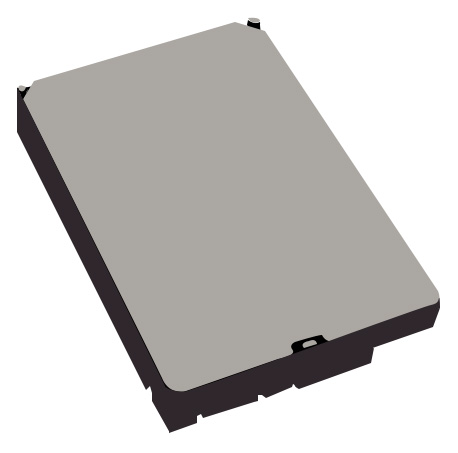
HDD

When considering mass storage, you typically have the option of an SSD (Solid-state disk) which is relatively fast and can be connected via SATA cable, or plugged directly into the motherboard, or you have a hard disk drive (HDD) which can offer a lot of space and is typically a lot cheaper than an SSD, but which is also significantly slower.

Typically we recommend an SSD for your operating system and for handling large current projects, such as video editing, CAD models and large datasets. Demanding workloads, such as those experienced by a workstation, typically require at least 2TB of storage, and then you may want to include an additional SSD drive for access to larger, less frequently used files, or an HDD if you need to store a lot of files, but don’t necessarily need ready access to them. Depending on your specific needs and requirements, you may end up with multiple drives, combining SATA SSDs, NVMe SSDs and HDDs.

We recommend you think in terms of storage tiers:

Tier Use Recommended type
Tier 1 OS, applications, active projects NVMe SSD (PCIe Gen 4 or Gen 5)
Tier 2 Finished projects, less frequently accessed assets Larger SATA SSD
Tier 3 (optional) Long-term archive and cold storage HDD or nearline NAS

This gives you the speed where it matters, without blowing the budget on multi-TB NVMe drives for data that rarely changes.

NVMe vs SATA SSDs: OS and active projects

In modern workstations, the days of relying on spinning HDDs for anything performance-critical are long gone. But even among SSDs, there’s a big difference between NVMe drives and older SATA SSDs and choosing the right type (and where to use each) can meaningfully affect your workflow’s responsiveness.

NVMe SSDs:

NVMe (Non-Volatile Memory Express) drives use PCIe lanes to communicate directly with the CPU. Their typical speeds are:

  • Sequential read/write: ~3,500–7,000 MB/s (PCIe Gen 3 ×4 to Gen 4 ×4; Gen 5 can exceed 10,000 MB/s)
  • IOPS (small random reads/writes): vastly higher than SATA

They are a great option for your operating system and applications. The NVMe’s low latency and high throughput mean faster boot times, snappier software launches and more responsive multitasking under heavy load.

For active projects (e.g., large video timelines, 3D cache files, simulation scratch space):

  • Real-time playback of 4K/6K/8K footage with fewer dropped frames
  • Faster caching and render previews
  • Shorter bake times for simulation or physics data

Bottom line: NVMe should always be the default choice for your C: drive (OS and apps) and your current “working” project drive.

SATA SSDs:
  • Max speeds: ~500–550 MB/s (limited by SATA III bus)
  • Random I/O: still far better than HDD, but significantly behind NVMe
  • Best used for:
    • Storing finished projects, asset libraries, and archived footage
    • Backup and versioned snapshots
  • While SATA SSDs can technically run OS and active projects, they feel noticeably slower once you’re working with large assets or multiple apps.
PCIe lanes & NVMe:
  • NVMe drives use PCIe lanes (usually x4 each).
  • Threadripper 9000 and Xeon W platforms have plenty of lanes, ideal for multiple NVMe drives plus GPUs.
  • Mainstream platforms (e.g., Core Ultra, Ryzen) may have only a few spare lanes, so adding too many NVMe drives can reduce GPU bandwidth or force some drives to share lanes.
Large capacity drives vs external NAS

As creative projects get larger (4K/8K video, huge texture libraries, AI datasets, photogrammetry, simulation results) the need for high capacity storage becomes more prominent, and the right choice of storage that allows you to scale, optimise your workflow and collaborate effectively becomes essential. At some point, you may question if you need additional large internal drives, or if you should invest in an external NAS.

Internal drive External NAS
Peak speed Highest (direct PCIe / SATA) Limited by network (1 GbE ≈ ~100 MB/s; 10 GbE ≈ ~1 GB/s)
Latency Lowest Higher
Collaboration Solo Multi-user
Scalability Limited by case and motherboard Easy to add drives / expand
Data protection Possible (RAID inside PC) Designed for RAID, snapshots, backup
Cost per TB Lowest Higher (enclosure + drives + network gear)

Big internal drives keep your current work fast and local; NAS keeps your archive safe, centralised, and shareable. The best professional workflows use both.

RAID options for redundancy or speed: what really helps in a workstation

For many professionals, especially those handling large assets or critical client projects, a single fast drive isn’t always enough. RAID (Redundant Array of Independent Disks) can help, either by making your storage faster, protecting against drive failure, or sometimes both. But like all tools, RAID only helps if it’s applied to the right problem.

Here’s what you should know before adding RAID to your custom workstation. We’re going to be discussing ‘striping’, ‘mirroring’ and ‘parity’ which is important to understand when discussing RAID.

Striping divides the data of a single volume across multiple drives, so each disk holds only part of the overall dataset. When the system needs to read or write a large file, it splits the request and sends it in parallel to all drives in the array. Each drive then contributes just its own segment of the file simultaneously. This coordinated effort means large files can be read or written significantly faster than if a single drive had to handle the entire load on its own. However, because each part is essential to reconstruct the whole, the striped volume will fail if any drive in the set stops working. For example: when editing an 8K video timeline stored on a striped RAID 0 array, the workstation can pull high-bitrate footage from several drives at once. This parallel read means smoother real-time playback and faster rendering of preview files; essential in professional post-production workflows.

Mirroring creates a fault-tolerant volume by duplicating data across two or more drives, so that each drive holds a complete, independent copy. Unlike striped arrays that split data into separate chunks, mirrored volumes ensure that every file exists in full on each disk. If one drive fails or becomes disconnected, the system can seamlessly continue working from the remaining healthy copy, keeping your data accessible and your workflow uninterrupted. For instance: a mirrored RAID 1 setup for a workstation’s project files means that if a single SSD were to fail during a critical render or client delivery, the second drive would instantly take over, avoiding downtime and data loss without missing a deadline.

Parity in RAID is a technique for adding fault tolerance by storing extra data that can be used to reconstruct missing information if a drive fails. Rather than keeping a full duplicate copy (like mirroring), parity calculates a special checksum across two or more drives and writes this parity data to another location. If one disk goes offline, the RAID controller can rebuild the lost data by recalculating from the remaining drives and the stored parity.

In some RAID levels, like RAID 4, this parity data is kept on a single dedicated disk (dedicated parity). In others, like RAID 5 and RAID 6, the parity blocks are distributed across all drives in the array, which helps balance write load and reduce bottlenecks. For example: in a RAID 5 array made up of three or more HDDs or SSDs, if one drive fails, you don’t immediately lose access to your projects. The RAID controller rebuilds the missing data using the parity blocks on the other drives so you can keep working until you replace the failed disk.

RAID for speed: striping

RAID 0 (striping) splits data evenly across two or more drives

Benefit Drawbacks Best use cases
Higher sequential read / write speeds – nearly double with two drives, triple with three, etc. Zero redundancy: If any drive fails, you lose all data High-speed scratch disks (e.g. large simulation cache, raw 8K video playback)
Lower latency under some parallel workloads Temporary data you can easily regenerate
RAID 0 is speed only. Never use it as your only copy of valuable project data.
RAID for redundancy: mirroring and parity

RAID 1 (mirroring) Keeps identical copies of your data on two drives.

Benefit Performance Best use cases
If one drive fails, you can keep working Slightly faster read speeds (both drives can serve data); write speed about the same as a single drive Small project drives that must stay online even if a disk fails

RAID 5 / RAID 6 (striping with parity)

Benefit Performance Best use cases
Combine three or more drives (RAID 5) or four+ drives (RAID 6) to get both extra speed and fault tolerance. RAID 5: survives one drive failure; RAID 6: survives two. Better suited to NAS or shared project storage than inside a single workstation (RAID rebuilds can be slow and risky).

RAID 10 (striping + mirroring): the balanced option

Requirement Performance Best use cases
Needs at least four drives. Data is mirrored and striped: fast reads/writes and redundancy. High-speed local storage for large active projects that must stay available.
RAID level Min. drives Speed benefit Redundancy Capacity efficiency* Typical workstation use
RAID 0 (striping) 2+ Highest (near linear scale with more drives) None (any drive failure loses all data) 100% Scratch disk, cache, temp simulations
RAID 1 (mirroring) 2 Slight read boost; write ≈ single drive Survives 1 drive failure 50% Small active project drive, OS disk redundancy
RAID 5 (striping + parity) 3+ Good read and write boost Survives 1 drive failure ~67–80% (varies by number of drives) NAS, shared media storage
RAID 6 (double parity) 4+ Moderate boost; slightly slower writes than RAID 5 Survives 2 drive failures ~50–75% Large NAS, critical shared storage
RAID 10 (striped mirrors) 4+ Fast (similar to RAID 0) Survives 1 drive failure per mirror pair 50% High-speed, fault-tolerant active project volume

*Capacity efficiency: usable capacity as % of total raw capacity.

RAID 0 is for pure speed, RAID 1/5/6 for protection, and RAID 10 balances both, but none replace proper backups.

Do you really need RAID in a workstation?

RAID can help, but modern high-capacity NVMe SSDs are already incredibly fast, and often faster than small RAID arrays of SATA drives, though RAID is more reliable than older HDDs.

RAID makes most sense when: You need >1 GB/s sustained throughput for very large projects, you can’t risk downtime from a single drive failure and you want to combine capacity beyond what a single drive offers

Important: RAID is not a backup. Accidental deletes, ransomware, or file corruption will replicate instantly across your array. Always combine RAID with a proper backup strategy (e.g., NAS, cloud, or offline copies).

RAID can add speed or protect against hardware failure but it’s no substitute for backup, and modern NVMe drives already meet most single-user speed needs. Use RAID carefully, where it fits your workflow.

Scratch disks: why and when to separate them

In professional creative and technical workflows, from video editing to simulation, VFX and AI, your workstation isn’t just reading and saving finished files. It’s constantly writing and deleting temporary data: cache files, simulation intermediates, preview renders, conformed media, and more.

This is where a dedicated scratch disk can make a real difference.

What is a scratch disk?

A scratch disk is a storage volume reserved only for temporary, high-turnover data. Examples of how your workflow might use a scratch disk are:

  • Video editing: render cache, conform files, proxy media (Premiere Pro, DaVinci Resolve)
  • 3D and VFX: simulation caches, texture bakes, preview renders (Houdini, Blender, Maya)
  • Scientific computing: temporary datasets, swap files
  • AI and ML: intermediate tensors, model checkpoints during training

These files often change constantly, are large (hundreds of GB for big projects) and aren’t needed once the final output is done.

Why separate them?

Performance Stability Easier management
Keeps random writes and heavy caching from competing with your OS and apps Avoids filling your main drive with cache data, which can cause crashes or failed renders You can safely wipe or auto-clear the scratch disk between projects without worrying about losing source files
Reduces the chance that a full cache disk will slow down your system drive
Best practices for scratch disks
  • Use a fast SSD (preferably NVMe): scratch data benefits from high write speeds and low latency
  • Size depends on your workflow:
    • Light editing: 250–500 GB
    • Heavy VFX / 8K editing / big sims: 1–2 TB or more
  • Keep scratch separate from:
    • OS / applications
    • Active projects and source media
  • Configure your software to target the scratch drive (e.g., Resolve cache location, Adobe scratch disk settings, Houdini temp directory)
When you really feel the benefit
  • Rendering out high-res sequences while continuing to edit
  • Simulations where intermediate cache files easily exceed 100 GB
  • Multi-user systems, where different apps might cache simultaneously

Why NVMe is better than SATA SSD for scratch disks

At first glance, both SATA SSDs and NVMe SSDs use fast NAND flash memory, and both are miles ahead of spinning HDDs. But under real workstation workloads, NVMe drives consistently outperform SATA SSDs as scratch disks, and here’s why:

Direct PCIe connection vs legacy SATA bus
  • SATA SSDs top out around 500–550 MB/s; limited by the SATA III interface (6 Gb/s).
  • NVMe SSDs connect directly to the CPU via PCIe lanes:
    • PCIe Gen 3 ×4: ~3,500 MB/s
    • PCIe Gen 4 ×4: ~7,000 MB/s
    • PCIe Gen 5 ×4: can exceed 10,000 MB/s

That’s 6–15× more sequential bandwidth, which matters when caching large simulation files, preview renders, or transcoded media.

Random I/O: where NVMe really shines

Scratch disks aren’t just writing big files once. Software constantly reads/writes small blocks: frame caches, audio peaks, temp files, proxies etc. NVMe drives have vastly higher IOPS (input/output operations per second), meaning they stay fast even under heavy, random workloads

This translates into:

  • Faster cache generation in After Effects, DaVinci Resolve, or Blender
  • Smoother timeline scrubbing and playback
  • Shorter bake times and fewer stalls in simulations
Lower latency and better multitasking

NVMe’s direct PCIe link cuts latency (time from request to response) roughly in half compared to SATA.

  • Less stuttering when your OS, project files, and scratch disk are all busy at once
  • Better performance under heavy multitasking or when running large datasets in AI/ML

Both SATA and NVMe SSDs are great for scratch but NVMe’s higher bandwidth, vastly superior random I/O, and lower latency make it the better choice, especially for 4K/8K video, VFX caching, and data-heavy simulation.

SATA SSD NVMe SSD
Interface SATA III (6 Gb/s) PCIe Gen 3/4/5 (x4)
Max sequential speed ~500–550 MB/s 3,500–7,000 MB/s (Gen 3/4); up to 10,000+ MB/s (Gen 5)
Random IOPs (4K) ~100k 500k–1M+
Latency ~80–100 µs ~20–40 µs
Typical use case Affordable scratch and archive; small projects High-resolution video, heavy VFX caching, large datasets
Multitasking & sustained load Can slow when full / under load Maintains high speed even with multiple apps
Price per GB Lower Higher, but falling quickly
Best for Older systems, cost-conscious builds Modern workstations, large active projects, AI workloads

NVMe drives outperform SATA SSDs on every metric that matters for scratch: sequential speed, random access, latency and sustained multitasking, making them the clear choice for demanding professional workflows.

Key buying decisions
NVMe vs SATA NVMe is faster than SATA so makes a great option for your OS and active files, whilst SATA is best reserved for longer term storage
Local drives or NAS NAS is a great option if you need extra security options or multiple devices need to connect to the same storage
Do you need RAID Most single users will have their requirements fulfilled by NVMe drives. With the speed of NVMe drives, the workflows that will benefit from a RAID setup tend to have niche security requirements or can’t risk downtime from a single drive failure
Motherboard and platform

Your motherboard choice is most likely going to depend on the CPU that you want to use for your workstation. The motherboard socket is going to determine what CPU you can use, what generation you can use and what connections you have access to, as well as how many PCIe lanes you have and to some extent, the type (and amount) of RAM you can use.

PCIe lanes: why they matter for multi-GPU / NVMe

When building high-performance workstations, especially for workloads like rendering, AI, simulation, or massive datasets, it isn’t just the CPU and GPUs that set the limits. The real backbone is often something less obvious but critical: PCIe lanes.

What PCIe lanes are

PCIe lanes are high-speed data pathways built into your CPU and motherboard chipset. Each lane is like an express highway carrying data between your processor and components such as:

  • Graphics cards (GPUs)
  • NVMe SSDs
  • High-speed network cards
  • Capture cards, RAID controllers, and other expansion cards

More lanes mean more components can communicate directly with the CPU at full speed without being forced to share bandwidth.

Why this matters in real workstation builds

Multi-GPU setups

  • GPUs typically use 16 lanes each to run at full x16 speed (PCIe Gen 4 or Gen 5).
  • On platforms with limited lanes (e.g., mainstream desktop CPUs), adding a second GPU can force both cards to drop to x8 which can slightly reduce performance, especially for compute-heavy rendering, AI, or simulation.

Multiple NVMe drives

  • NVMe SSDs can easily saturate x4 PCIe lanes each (Gen 4 NVMe can deliver ~7 GB/s).
  • If your CPU doesn’t have enough lanes, adding several NVMe drives might force them to share bandwidth, connect via the chipset (higher latency), or disable other ports.

Other devices

Capture cards, high-speed network adapters (10/25 GbE), and RAID controllers all need lanes, too.

Platform differences: Threadripper / Xeon vs mainstream CPUs
Mainstream desktop CPU (e.g., Intel Core Ultra / Ryzen) HEDT / workstation CPU (e.g., AMD Threadripper 9000, Intel Xeon W-3500)
Typical CPU PCIe lanes ~16–20 64–128+
Number of GPUs at x16 Usually 1 2–4 or more
Number of full-speed NVMe drives 1–2 4–6+

High-end workstation CPUs (Threadripper, Xeon) give you more PCIe lanes so you can run multiple GPUs and several NVMe drives simultaneously, each at full bandwidth which is exactly what you want for:

  • GPU rendering farms
  • AI and ML model training
  • Real-time 8K video editing and cache drives
  • Complex simulation workloads

Think of PCIe lanes as the internal highways of your workstation. The more demanding your setup (multiple GPUs, fast NVMe storage, capture cards), the more lanes you need to keep every part running at full speed without traffic jams.

Chipset features: USB-C, Thunderbolt, 10GbE, remote management

When choosing a motherboard for a professional workstation, it’s tempting to focus only on CPU support and PCIe slots. But the chipset (the motherboard’s secondary controller) quietly adds a host of features that can make your daily workflow faster, easier, and more future-proof.

Here are some of the most valuable chipset-level features to look out for:

USB-C and USB 3.2 / USB 4

Modern motherboards often include:

  • USB-C ports on the rear I/O and sometimes on front-panel headers
  • High-speed USB 3.2 Gen 2×2 (20 Gbps) or USB 4 ports
    These allow:
  • Fast transfer of large media files to and from external SSDs
  • Direct connection to displays, capture devices, and docks
  • Clean single-cable setups for devices like cameras, tablets, or VR headsets
Thunderbolt support

Some chipsets (and certain premium boards with add-in controllers) add:

  • Thunderbolt 3 or Thunderbolt 4 ports
  • Up to 40 Gbps bandwidth

Thunderbolt is invaluable for:

  • Daisy-chaining fast external NVMe RAID drives
  • Connecting external GPUs (eGPUs) or AI accelerators
  • High-resolution monitors, audio interfaces, and pro video capture equipment
Integrated 10 GbE networking

While standard motherboards often have 1 GbE ports, workstation-class boards may include:

  • 10 GbE (10 Gigabit Ethernet) or even multiple ports
    Benefits:
  • Rapid access to shared NAS storage, project servers, or render farms
  • Faster backup and media offload compared to USB
  • Lower latency for network-based workflows (e.g., remote rendering or live collaboration)
Remote management (IPMI / BMC)

Certain workstation and server boards include:

  • IPMI (Intelligent Platform Management Interface)
  • A BMC (Baseboard Management Controller)
    These allow:
  • Remote power cycling and BIOS-level access
  • Hardware monitoring, alerts, and troubleshooting even if the OS is unresponsive

    Critical for:
  • Headless systems, rack-mounted workstations, or studios managing multiple machines

A workstation motherboard’s chipset isn’t just a technical spec, it’s what decides if you can plug in next-gen storage, run high-speed networks, and manage your system remotely when it matters most.

BIOS stability and vendor reputation

When evaluating motherboards for a professional workstation, it’s easy to focus on headline specs: PCIe slots, RAM capacity, USB ports. But in real production environments, what often makes the difference between a reliable tool and a constant source of frustration isn’t listed on the box; it’s BIOS maturity and the vendor’s track record.

BIOS stability: small detail, big impact

The BIOS (or UEFI firmware) is the low-level software that controls your motherboard’s most critical functions:

  • CPU and memory initialization
  • PCIe lane mapping
  • Power states and fan control
  • Storage device detection

An unstable or immature BIOS can cause:

  • Random crashes or reboots under load
  • RAM incompatibility or limited speeds
  • PCIe devices dropping offline
  • Failed POST after updates

For creative workstations, especially those running large memory kits, multiple GPUs, or bleeding-edge CPUs, a stable, frequently updated BIOS is essential to keep the system reliable.

Vendor reputation and long-term support

Motherboard brands differ in how they:

  • Test workstation configurations (multi-GPU, large ECC RAM kits)
  • Release timely BIOS updates for new CPUs or bug fixes
  • Provide support if something goes wrong

Well-regarded workstation motherboard vendors often:

  • Publish qualified component lists (QVL) that are genuinely tested
  • Issue BIOS updates quickly when new CPU microcode appears
  • Offer longer-term firmware support: important if you plan to keep the system in service for years

The best motherboard isn’t always the one with the flashiest heatsinks or the longest feature list, it’s the one whose BIOS quietly keeps your workstation stable, week in and week out.

Key buying decisions
PCIe lanes More PCIe lanes gives you the option for more graphics cards, NVMe SSDs, high speed network cards, capture cards, RAID controllers and expansion cards
Chipset features Your motherboard chipset affects your connectivity options
BIOS stability Choosing a stable, frequently updated BIOS can help you avoid random crashes or hardware incompatibility

Cooling and acoustics

Workstations designed for serious creative, engineering, or scientific work often pack in powerful multi-core CPUs, high-wattage GPUs, and fast storage, all of which generate substantial heat under sustained load. But raw thermal performance isn’t the only goal: how your system handles that heat has a direct impact on stability, component lifespan, and the day-to-day experience of using it.

A cooler system doesn’t just run faster, it runs quieter, lasts longer, and feels more professional to work beside all day.

In this section, we’ll look at:

  • Why sustained workloads like rendering or AI training stress cooling differently from short gaming bursts
  • How fan curves, heatsinks, liquid cooling and airflow design come together
  • Why acoustics matter in creative spaces, especially when working near microphones or clients
  • Real considerations: dust management, servicing, and planning for future hardware upgrades

Whether you’re building a compact creative box or a multi-GPU simulation rig, cooling and acoustics aren’t afterthoughts; they’re part of designing a workstation that stays fast, reliable, and comfortable to live with every day.

Air vs liquid cooling: trade-offs in thermal capacity and maintenance

Choosing between air and liquid cooling isn’t just about temperature numbers on a benchmark chart, it’s about balancing sustained performance, reliability, noise, and day-to-day maintenance.

Here’s what actually matters for professional workstation builds:

Air cooling: simplicity and reliability
  • Modern high-end tower coolers with large heat pipes and dual fans can quietly handle CPUs up to 250W TDP, often enough even for flagship desktop chips.
  • Fewer moving parts: no pump to fail, no risk of coolant leaks.
  • Easier to install, inspect, and clean: a quick dust-off keeps them running for years.
  • In sustained workloads (CPU render, simulation, compile jobs), high-quality air coolers often maintain performance nearly as well as liquid, since airflow is consistent and fans can spin up gradually.

Real-world tip: many workstation builders choose large, low-RPM air coolers because they stay nearly silent under typical creative workloads, even with brief render spikes.

Liquid cooling (AIO or custom loops): higher thermal headroom
  • All-in-one (AIO) liquid coolers move heat away from the CPU faster, using a radiator that can be mounted where airflow is better.
  • Larger radiators (240mm, 360mm or more) provide more surface area to dissipate heat, which helps when pushing heavily overclocked CPUs or handling sustained all-core workloads.
  • Can reduce noise if radiator fans spin slower than equivalent tower cooler fans though the pump itself adds a constant low hum.

In multi-GPU systems, liquid cooling can also free up case space and improve airflow around the graphics cards.

Maintenance and long-term considerations
Air cooling Liquid cooling (AIO)
Moving parts Just fans Fans and pump
Risk of leaks None Small, but possible
Typical lifespan Often 5-10+ years Pump wear often limits to ~3-7 years
Cleaning Blow out dust Dust and check for pump noise / leaks
Cost Generally lower Higher, especially for large AIOs

Custom liquid loops can cool both CPU and GPUs even better, but come with significant cost, complexity, and ongoing maintenance (coolant flushes, leak checks).

For many workstation builds, a large, quality air cooler is quiet, reliable, and almost maintenance-free. Liquid cooling makes sense when thermal limits are the bottleneck especially for high-TDP CPUs, multi-GPU setups, or overclocked systems where every degree matters.

Fan curves and noise management for creative studios

When your workstation lives in a shared space near microphones, client seating, or your own editing suite, the difference between a loud cooling system and a near-silent one is more than comfort: it can directly affect your workflow and professional presentation.

That’s where thoughtful fan curve tuning and acoustic planning come in.

What's a fan curve?

A fan curve maps temperature to fan speed:

  • At lower CPU or GPU temps, fans stay at lower RPM (quieter)
  • As temperatures rise under load, fans spin up to keep components within safe limits

Modern motherboards and GPUs allow detailed fan curve tuning:

  • Adjust slope: how aggressively fans react to heat
  • Set minimum/maximum RPM thresholds
  • Create separate curves for CPU, GPU, case, and even VRM fans
Noise management: beyond just slower fans

Noise-sensitive creative environments benefit from:

  • Larger fans (120mm / 140mm): move more air at lower RPM, reducing pitch and volume
  • PWM fans: precise speed control, smoother ramp-up and ramp-down
  • Case design: acoustic panels, airflow paths, and anti-vibration mounts all reduce vibration and resonance
  • Component placement: keeping loud GPUs or hard drives further from the user’s earline

Tip: in a recording space or edit suite, it’s often worth trading slightly higher idle temperatures for significantly lower idle noise.

Smoothing the curve: why it matters
  • Avoid steep ramps where fans jump suddenly from low to high speed, this is more distracting than a steady hum
  • Balance noise vs cooling for your real workloads:
    • Short bursts (like timeline scrubbing) rarely need instant max RPM
    • Sustained renders can spin up gradually once heat truly builds

Fan curves aren’t just about temperature, they’re about designing your workstation’s sound profile: steady, predictable, and quiet enough to disappear into the background of your creative space.

Dust filters, chassis choice for airflow and silence

Beyond fans and coolers, your choice of case (chassis) and dust management strategy can have a huge impact on thermals, acoustics, and long-term reliability. A well-chosen case keeps temperatures down, noise under control, and your components free from dust that can quietly kill performance over time.

Dust filters: why they matter
  • Modern workstations pull in large volumes of air to keep powerful CPUs and GPUs cool.
  • Dust buildup on heatsinks and radiators acts like a thermal blanket, raising temperatures and forcing fans to spin faster, which increases noise.
  • Removable, fine-mesh dust filters catch most airborne particles before they reach sensitive parts.

Look for:

  • Front, bottom, and top filters (especially on intakes)
  • Magnetic or slide-out designs that are quick to clean
  • Fine mesh that balances dust capture with low airflow resistance

Tip: set up your fans for positive pressure (more intake than exhaust). This forces air out through gaps, reducing dust drawn in from unfiltered cracks.

Chassis design: balancing airflow and silence

High airflow cases:

  • Large mesh panels and multiple fan mounts
  • Lower internal temps especially helpful for multi-GPU or high-core-count CPUs
  • Fans can run slower (and quieter) while still moving the same volume of air
Silence-optimized cases:
  • Solid front panels, acoustic foam or damping materials
  • Fewer direct airflow paths; slightly higher temperatures under sustained load
  • Quieter at idle or during light workloads, good for audio mixing or VO recording
Other real-world considerations:
  • Fan size and placement: 140 mm fans tend to be quieter than 120 mm for the same airflow
  • Cable management space: tidy cables improve airflow and reduce turbulence
  • Tool-less panels and filters: make it easier to clean, encouraging regular maintenance
  • Room acoustics: even the quietest case will sound louder if placed on a hard desktop instead of under the desk or behind acoustic panels

A note on Threadripper systems: You can use any consumer all-in-one (AIO) or Air CPU cooler as long as they are listed as TR4/5 compatible (depending on which Threadripper you are using). However, because Threadrippers are bigger in size than consumer CPUs, the cooling plate on the coolers, which have direct contact with the CPU, might not cover the entirety of it. They will likely cover the important heat points, so will be effective, but there are certain coolers that have bigger cooling plates that cover more of the CPU. However, cooling plate dimensions don’t necessarily show up on CPU cooler datasheets, so knowing what to go for can involve a little bit of trial and error. If you’re unsure or want to discuss your options, our expert team are on hand.

A note on Xeon/Epyc systems: Consumer CPU coolers will not work for these CPUs as they are just too large and too specific of a socket to connect to. If you plan to use a Xeon or Epyc CPU, you will need to find a CPU cooler that works with the socket for your specific CPU. These coolers are niche so there aren’t many different models around and they tend to be more expensive. Here at Punch, we usually recommend customers opt for an air cooler for these systems as the tend to be cheaper than a niche Xeon / Epyc AIO cooler and easier to troubleshoot and replace if anything goes wrong. The only downside really is the noise, although this tends to be less of a priority for server customers. Also, if you are looking to use multiple CPUs in a system, it is much easier to attach multiple air coolers than to have multiple AIO radiators and piping all through the system.

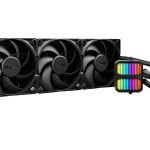
The Be Quiet! Silent Loop 3 420mm AIO is a consumer AIO with a larger cooling plate that works well for Threadripper systems

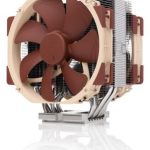
The Noctua NH-U14S-DX-4677 is a good air cooler choice for LG4677 Xeons

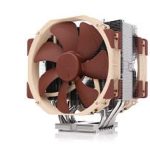
The Noctua NH-U14S TR5-SP6 makes a good choice for SP6 Epyc CPUs

Choose a case that fits your thermal load and your workspace: mesh panels and big fans for cool, efficient airflow; or sound-dampened panels for ultra-quiet environments, always combined with good dust filtration to keep performance consistent.

Top 5 cooling tips for professional workstations
Match cooling to your thermal load High-core CPUs, multi-GPU setups, and long render or AI training jobs create sustained heat. Size your air or liquid cooling solution for continuous load, not just short benchmarks.
Prioritise case airflow over looks Choose a chassis with large mesh intakes, multiple fan mounts, and clear airflow paths. Airflow efficiency matters more than RGB lighting in a production machine.
Use larger, slower-spinning fans 140 mm fans can move more air at lower RPM than 120 mm, reducing noise while keeping components cool – essential in noise-sensitive studios.
Plan for dust management Fine-mesh dust filters on all intakes and positive pressure airflow reduce internal dust build-up, keeping temps stable and reducing fan ramp-up over time.
Leave cooling headroom for future upgrades A case with radiator support, extra fan mounts, and clear GPU space will save headaches if you add higher-TDP components later.
PSU and reliability

In a high-end workstation, the power supply isn’t just a commodity part buried at the bottom of the case, it’s the silent foundation that keeps every component running safely and stably, day after day.

Unlike a gaming PC that may see full load for a few minutes, creative and technical workstations often sustain high power draw for hours: multi-core rendering, AI training, simulation, or real-time video encoding. Under these conditions, the quality and design of your PSU directly affect:

  • System stability and crash resistance under peak load
  • Component lifespan, by avoiding voltage ripple and sudden brownouts
  • Safety: protecting expensive GPUs, storage, and motherboards from power faults

Choosing the right PSU isn’t just about having “enough watts”, it’s about clean, consistent power, efficiency, and proven reliability.

In this section, we’ll explore:

  • How to size a PSU for multi-GPU or HEDT systems
  • Efficiency ratings (80 Plus Bronze vs Platinum) and why they matter
  • Modular cables, build quality, and ripple suppression
  • Vendor reputation and long-term warranty as signals of trustworthiness

A carefully selected power supply won’t make your renders faster, but it can quietly ensure your workstation keeps doing them, year after year, and protect your investment in every other part of the build.

Sizing for peak power draw vs average load

One of the most common mistakes in building professional workstations is sizing the power supply only by looking at the average power draw, the number you might see on a power meter while the system is under normal working conditions.

But real-world workloads, especially on multi-core CPUs and multiple GPUs, can produce power spikes that briefly demand much more power than your system typically consumes. Your PSU needs to be sized not just for your average load, but for these peak transient loads, or your system risks sudden shutdowns, instability, or worse.

Average load: the baseline
  • Many creative workloads, editing, moderate 3D work, code compilation, often use 30–60% of a workstation’s total power capacity.
  • Average daily consumption is what affects electricity cost and heat output.
Peak load: what you must cover
  • Short spikes happen during:
    • Scene loading in 3D or VFX
    • Starting a multi-core render
    • AI training batch initialization
    • Spinning up multiple drives simultaneously at boot
  • GPUs in particular can create rapid transient spikes, sometimes up to 2× their rated TDP, lasting just milliseconds.

If your PSU can’t handle these spikes, your system can:

  • Crash or power-cycle under heavy load
  • Throttle GPU or CPU performance
  • Trigger motherboard-level overcurrent protection
How to plan
Step What to do
1 List the components: CPU, GPUs, drives, PCIe cards, fans, etc.
2 Sum rated TDPs — but add ~20–30% buffer for transient spikes and future upgrades
3 Choose a PSU whose continuous power rating comfortably exceeds that number
4 Prefer PSUs with strong single +12 V rails and good transient response (often found in higher efficiency Gold/Platinum units)

For example:

  • A single high-end CPU + one RTX workstation GPU might average 350–400W, but can spike to 500–600W.
  • Dual GPUs and a Threadripper 9000 might average 600–800W, but can peak near 1,000W.

In these cases, a quality 750–850W PSU or 1,000–1,200W PSU isn’t overkill, it’s insurance against unpredictable workloads and component aging.

Don’t size your PSU just for what your power meter shows day-to-day – size it for the heaviest moment your system might see. That’s when it matters most.

Importance of 80 Plus certification

When choosing a power supply, you’ll often see labels like 80 Plus Bronze, Gold, Platinum, or Titanium. These aren’t just marketing badges: they’re an independent measure of how efficiently your PSU turns wall power (AC) into usable DC power for your components.

What 80 Plus really means
  • Efficiency is the percentage of power drawn from the wall that actually reaches your PC’s components.
  • For example, an 80 Plus Gold PSU running at 50% load typically wastes only ~10–12% of power as heat, delivering ~88–90% of the energy to your system.
Why higher efficiency matters in workstations
  • Lower heat output: less wasted energy means your PSU stays cooler, helping the whole system’s thermals and reducing fan noise.
  • Better stability under load: higher efficiency models often have better internal components (capacitors, transformers) that improve voltage regulation and handle transient spikes more gracefully.
  • Reduced operating cost: in systems that run long renders, AI training, or simulations for many hours a day, saving even 5–10% of power draw adds up over months or years.
Real-world workstation context
Bronze Gold Platinum / Titanium
Typical efficiency at 50% load ~82–85% ~87–90% ~90–94%
Heat generated (wasted power) More Less Least
Best for Budget-conscious builds Most professional workstations Always-on servers, very high-load systems

In many creative studios and production environments, 80 Plus Gold is the practical sweet spot: high enough efficiency for real savings and thermal benefit, without the cost jump of Platinum or Titanium which tend to shine most in data centers or truly 24/7 render farms.

80 Plus isn’t just about “green” credentials: it affects noise, heat, component longevity, and your electric bill – all things that matter in a high-performance workstation.

Let’s compare a workstation that draws ~400 W at typical load, running 8 hours a day, 5 days a week, for a year.

Local electricity cost: £0.30 per kWh (UK average – adjust for your market).

Bronze (~83% efficiency) Gold (~88% efficiency)
Power drawn from wall 400 W ÷ 0.83 ≈ 482 W 400 W ÷ 0.88 ≈ 455 W
Extra power wasted as heat ~82 W ~55 W
Annual hours 8 × 5 × 52 ≈ 2,080 hours 2,080 hours
Annual energy used 482 W × 2,080 h ≈ 1,003 kWh 455 W × 2,080 h ≈ 946 kWh
Annual electricity cost 1,003 kWh × £0.30 ≈ £301 946 kWh × £0.30 ≈ £284
Annual savings ≈ £17 per workstation

Application specific planning

3D rendering and simulation

Key considerations:

Multi-core CPUs vs High clock speed (unless GPU rendering)
Minimum 32GB of RAM required, 64GB+ if working on complex scenes
Consider GPU VRAM for large scenes

When it comes to 3D rendering and simulation, your workstation requirements are going to depend on the workflow you are carrying out. Complex rendering, for example, typically requires a higher spec of system.

For CPU rendering, you are going to need a powerful CPU with multiple cores, prioritising multi-core capabilities over high clock speeds. You will also need ample storage and memory, especially if you are working with large files or working on multiple projects simultaneously.

Our recommendations for a balanced, professional and high end system would be:

Balanced

CPU: Intel Core i9-14900K 3.2 / 6.0 GHz 24 Core, 32 Thread CPU
GPU: Nvidia Quadro RTX 4000 ADA 20GB Professional GPU
RAM: 64GB Crucial DDR5 5600 MHz Memory (2 x 32GB)
SSD 1: 1TB Samsung 990 Pro M.2 NVMe PCIe 4.0 SSD
SSD 2: 4TB Samsung 990 Pro M.2 NVMe PCIe 4.0 SSD
Motherboard: Gigabyte Z790 AORUS MASTER DDR5 Motherboard

This system will deliver exceptional performance in your demanding rendering and design workloads, offering lightning fast memory connectivity. 

Performance

CPU: AMD Ryzen Threadripper Pro 5955WX CPU 16 Core, 32 Thread CPU
GPU 1: Nvidia GeForce RTX 5080 16GB GDDR7 GPU
GPU 2: Nvidia GeForce RTX 5080 16GB GDDR7 GPU
RAM: 64GB Corsair Vengeance LPX 3200MHz (4 x 16GB)
SSD 1: 1TB WD Black SN7100 M.2 PCIe 4.0 NVMe SSD [7250MB/s R, 6900MB/s W]
Motherboard: Asus PRO WS WRX80E-SAGE SE WIFI Workstation Motherboard

Built to perform in either CPU or GPU rendering workflows, this system offers reliable, high-performance with plenty of space for additional storage and any required connectivity.

Professional

CPU: AMD Ryzen Threadripper Pro 9995WX CPU 96 Core 192 Thread CPU
GPU: Nvidia GeForce RTX 5090 32GB GDDR7 GPU
GPU 2: Gigabyte AORUS GeForce RTX 5090 XTREME WATERFORCE 32GB GPU
GPU 3: Gigabyte AORUS GeForce RTX 5090 XTREME WATERFORCE 32GB GPU
RAM: 256GB DDR5 RDIMM 5600MHz CL46 (4x64GB)
SSD 1: 2 TB Crucial T705 M.2 NVMe PCIe 5.0 SSD (14500MB / R, 12700MB / W)
Motherboard: ASUS Pro WS WRX90E-SAGE SE Workstation motherboard

Combining three RTX 5090 graphics cards and the latest 9000 series Threadripper CPUs to deliver unparalleled rendering potential.

Video editing and post-production

Key considerations:

Storage speed
RAID for footage
GPU acceleration
AI upscaling workloads

Your requirements for a video editing workstation will be affected by the type of work you are doing. If you are handling HD footage, you will not need as high a spec as if you’re editing or working with 4K footage. For video editing and rendering, a mix of core count and clock speed will provide good performance and the power of your CPU will help with the speed of your editing and rendering.

Balanced

CPU: Intel Core i5-14600KF 3.5/5.3GHz 14 Core, 20 Thread CPU
GPU: Nvidia GeForce RTX 3050 8GB GPU
RAM: 32GB Crucial DDR5 5600MHz Memory (2x16GB)
SSD 1: 1TB NVMe M.2 SSD (up to 6000MB/R, 4000MB/W)
SSD 2: 2TB WD Black SN7100 M.2 PCIe 4.0 NVMe SSD
Motherboard: MSI B760M Gaming Plus WIFI DDR5 mATX motherboard

With components chosen to help the system to run silently, this video editing PC is excellent for high performance 1080p editing and occasional 4k video editing.

Performance

CPU: Intel Core Ultra 7 265KF 3.9/5.5GHz 20 Core CPU
GPU: Nvidia GeForce RTX 5070 12GB GDDR7 GPU
RAM: 64GB Corsair Vengeance DDR5 6000MHz CL30 (2x32GB)
SSD 1: 1TB WD Black SN7100 M.2 PCIe 4.0 NVMe SSD [7250MB/s R, 6900MB/s W]
SSD 2: 2TB Black SN7100 M.2 PCIe 4.0 NVMe SSD [7250MB/s R, 6900MB/s W]
HDD: 8TB Seagate 3.5” Ironwolf Pro HDD
Motherboard: Gigabyte Z890 Aorus Elite WiFi7 Motherboard

Built to improve handling of large size files when compared to the balanced system, our professional configuration offers superb performance in 4k editing and rendering.

Professional

CPU: AMD Ryzen Threadripper Pro 9975WX
GPU: Nvidia GeForce RTX 5090 32GB GDDR7
RAM: 128GB DDR5 RDIMM 5600MHz CL46 (4x32GB)
SSD 1: 1TB WD Black SN7100 M.2 PCIe 4.0 NVMe SSD
SSD 2: 4TB WD Black SN7100 M.2 PCIe 4.0 NVMe SSD
HDD: 16TB Seagate 3.5” Ironwolf Pro HDD
Motherboard: AUS Pro WS TRX50-SAGE WiFi Motherboard

If your workload involves complex, multi-layer, 8k HDR video editing and rendering, this system has been designed to handle it easily, offering the pinnacle of video editing performance.

AI Machine learning

Key considerations:

VRAM vs RAM balance
Multi-GPU configurations
Power and cooling challenges

Whilst AI and HPC continues to evolve so rapidly, the requirements for systems can vary wildly from high-performance desktops, right up to server grade, rack-mountable systems. You’re likely going to need a PC that is able to process massive datasets, accelerate complex computations and reduce time to inference.

When designing a workstation geared for AI and high-performance computing (HPC), it’s essential to strike the right balance between system RAM and GPU VRAM. Both memory types serve distinct but complementary roles that directly impact performance and efficiency in data-intensive workloads.

System RAM acts as the primary workspace for the CPU, handling everything from operating system operations to managing large datasets in memory during preprocessing and model training. Insufficient RAM can bottleneck your workflow, causing slowdowns or even crashes when datasets exceed available memory.

GPU VRAM, meanwhile, is dedicated video memory used by the graphics card to store and process data in parallel; a core requirement for accelerating AI model training, simulations, and HPC tasks. VRAM capacity determines the size of models and batch processing that the GPU can handle efficiently without offloading data to slower system memory.

An imbalance (for example, high VRAM paired with limited system RAM, or vice versa) can restrict the overall performance of your AI or HPC workloads. Too little VRAM may prevent your GPU from fully leveraging its parallel compute power, while inadequate system RAM limits the CPU’s ability to feed data efficiently to the GPU.

For IT departments planning workstation purchases, understanding the typical workload and dataset sizes is key. Workstations should be specified with enough system RAM to support data manipulation and preprocessing, alongside sufficient VRAM to accommodate model complexity and training batch sizes. This ensures smooth, scalable performance, minimizes costly bottlenecks, and maximizes return on investment.

In summary, achieving a balanced memory configuration is not just about raw capacity, but about matching hardware capabilities to your organization’s unique computational demands, future-proofing your AI and HPC infrastructure for evolving research and development needs.

For organisations tackling complex AI models or large-scale HPC simulations, multi-GPU setups can be a game changer. By integrating two or more GPUs into a single workstation, you multiply the parallel processing power available, significantly reducing training times and accelerating data-intensive computations.

Multi-GPU configurations shine in scenarios where workloads are highly parallelisable, such as deep learning model training, scientific simulations, and rendering tasks. Distributing computations across multiple GPUs enables larger models or bigger batch sizes, which directly translates into faster experimentation cycles and quicker time to results.

This approach is particularly valuable for research centres, universities, and startups pushing the boundaries of AI development, where rapid iteration on models is essential. Similarly, SMEs engaged in computationally heavy workloads, such as genomics, financial modelling, or engineering simulations, benefit from the scalability that multi-GPU workstations provide.

However, deploying multi-GPU systems requires careful consideration. Not all AI or HPC applications efficiently scale across multiple GPUs, and software support varies. Ensuring your software stack and workflows are optimised for multi-GPU use is critical to unlocking their full potential.

Additionally, multi-GPU setups often demand more robust cooling solutions and power delivery, and can increase workstation costs and complexity. Therefore, multi-GPU workstations are best suited for organisations with demanding, scalable workloads and the technical expertise to manage and maintain them.

In short, multi-GPU configurations offer significant performance advantages for AI and HPC workloads that justify the investment, delivering the horsepower required for cutting-edge research and data-driven innovation.

Power and cooling considerations for AI and HPC workstations

High-performance AI and HPC workstations, especially those equipped with powerful GPUs and multi-GPU configurations, demand careful attention to power supply and thermal management to ensure reliable, sustained operation.

Power supply:

Modern GPUs designed for AI and HPC workloads can draw significant power—often 250W or more per card. Multi-GPU systems multiply this demand, making it essential to choose a high-quality, appropriately rated power supply unit (PSU) with sufficient wattage and headroom to handle peak loads. A PSU with at least an 80 Plus Gold certification is recommended for efficiency and reliability, reducing wasted energy and heat generation. Additionally, consider the number and type of power connectors needed for GPUs and other components.

Cooling solutions:

The intensive computation of AI and HPC tasks generates substantial heat, particularly in GPU cores. Effective cooling is critical to maintain optimal performance and hardware longevity. Workstations should incorporate robust cooling strategies such as high airflow chassis designs, multiple case fans, and premium CPU coolers, whether air or liquid-based.

Multi-GPU setups further increase thermal load, often requiring specialised cooling approaches like enhanced airflow layouts, dedicated GPU cooling ducts, or even liquid cooling solutions. Monitoring tools and thermal sensors can help manage temperatures proactively to avoid thermal throttling or hardware damage.

Environmental factors:

In shared facilities like data labs or office spaces, ensure adequate ambient cooling and ventilation. High-density workstations can affect room temperature, so planning for environmental controls can prevent overheating issues.

In summary, aligning your workstation’s power supply and cooling capabilities with its computational demands is vital. Proper planning prevents unexpected downtime, ensures stable performance under heavy loads, and protects your investment in cutting-edge AI and HPC hardware.

Balanced

CPU: Intel Core Ultra 9 285K 3.7/5.7GHz 24 Core
GPU: Nvidia GeForce RTX 5090 32GB GDDR7
RAM: 96GB Corsair Vengeance DDR5 6400MHz CL32 (2x48GB)
SSD 1: 2TB Crucial T705 M.2 NVMe PCIe 5.0 SSD (14500MB/R, 12700MB/W)
SSD 2: 4TB Samsung 990 Pro M.2 NVMe PCIe 4.0 SSD (7450MB/R, 6900MB/W)
HDD: 12TB Seagate 3.5” Ironwolf Pro HDD
Motherboard: Asrock Phantom Z890 NOVA WiFi Motherboard

Performance

CPU: AMD Ryzen Threadripper Pro 9995WX CPU 96 Core 192 Thread 2.5/5.4GHz
GPU 1: Nvidia GeForce RTX 5090 32GB GDDR7 GPU
GPU 2: Gigabyte AORUS GeForce RTX 5090 XTREME WATERFORCE 32GB
GPU 3: Gigabyte AORUS GeForce RTX 5090 XTREME WATERFORCE 32GB
RAM: 256GB DDR5 RDIMM 5600MHz CL46 (4x64GB)
SSD 1: 2TB Crucial T705 M.2 NVMe PCIe 5.0 SSD (14500MB/R, 12700MB/W)
Motherboard: ASUS Pro WS WRX90E-SAGE SE Workstation Motherboard

Professional

CPU: Dual AMD EPYC 9374F 3.85GHz 32 Core CPU – 4.3GHz Turbo
GPU 1-8: 8 x Nvidia Quadro RTX 6000 ADA 48GB
RAM: 512GB DDR5 RDIMM 4800MHz CL46 (16x32GB)
SSD 1: 1TB NVMe M.2 SSD (up to 6000MB/R, 4000MB/W)
Motherboard: ASUS ESC8000A-E12 AMD EPYC Motherboard for 8 Dual Slot GPUs and 2 PCIe and 2 NVMe

Architecture and CAD

Key considerations:

Viewport FPS: clock speed importance
Large RAM pools

We’ve worked with Architecture practices to develop our architecture workstations based on real-world workflows, which is why we recommend builds that focus on fast render times and VR ready visualisations.

Balanced

CPU: Intel Core i5-14400F 2.5/4.7GHz 10 Core, 16 Thread CPU
GPU: PNY Quadro T1000 4GB Nvidia professional
RAM: 16GB Crucial DDR4 3200MHz (2 x 8GB)
SSD 1: 2TB NVMe M.2 SSD (up to 6000MB/R, 5000MB/W)
Motherboard: Gigabyte B760 DS3H AX DDR4 ATX

Performance

CPU: AMD Ryzen 7700 3.8GHz 8 Core CPU – 5.3GHz Turbo
GPU 1: Nvidia GeForce RTX 5070 Ti 16GB GDDR7
RAM: 32GB Corsair Vengeance DDR5 5200MHz CL40 (2 x 16GB)
SSD 1: 1TB NVMe M.2 SSD (up to 6000MB/R, 4000MB/W)
Motherboard: Gigabyte B650 Gaming X AX V2

Professional

CPU: Intel Core i9-14900K 3.2/6.0GHz 24 Core, 32 Thread
GPU 1: Nvidia Quadro RTX 4000 ADA 20GB Professional GPU
RAM: 64GB Crucial DDR5 5600MHz (2 x 32GB)
SSD 1: 1TB Samsung 990 Pro M.2 NVMe PCIe 4.0 SSD (7450MB/R, 6900MB/W)
SSD 2: 4TB Samsung 990 Pro M.2 NVMe PCIe 4.0 SSD (7450 MB/R, 6900MB/W)
Motherboard: Gigabyte Z790 AORUS MASTER DDR5

Software development

Key considerations:

Fast compile times: high-frequency CPUs
NVMe storage
Lots of RAM for VMs/containers

When it comes to a workstation for programming, your key considerations are going to include a multi-core processor, enabling you to multitask more efficiently and compile faster. You will also want to invest in a fast NVMe SSD to benefit from fast boot times and access to files, as well as faster code compiling. Finally you will need to have plenty of fast RAM. 16GB is the minimum we would recommend for a speedy software development workstation, but if you’re going to be working in resource intensive environments or running multiple virtual machines/containers, this could easily be increased to 64GB plus.

Balanced

CPU: Intel Core i5-14500 2.6/5.0GHz 14 Core CPU
GPU: Nvidia GeForce RTX 3050 6GB 
RAM: 16GB Crucial DDR4 3200MHz (2 x 8GB)
SSD 1: 1TB NVMe M.2 SSD (3500MB/R, 2100MB/W)
HDD: 4TB Seagate BarraCuda 3.5” Hard Drive
Motherboard: Gigabyte B760 DS3HP DDR4 mATX ATX

Performance

CPU: Intel Core i7-14700F 2.1 / 5.4GHz 20 Core, 28 Thread CPU
GPU 1: Nvidia GeForce RTX 3060 12GB
RAM: 48GB Corsair Vengeance DDR5 6000MHz CL36 (2 x 24GB)
SSD 1: 1TB WD Black SN7100 M.2 PCIe 4.0 NVMe SSD [7250MB/s R, 6900MB/s W]
SSD 2: 2TB WD Black SN7100 M.2 PCIe 4.0 NVMe SSD [7250MB/s R, 6900MB/s W]
HDD: 6TB Seagate BarraCuda 3.5” Hard Drive
Motherboard: Gigabyte Z790 Eagle AX

Professional

CPU: Intel Core Ultra 7 265KF 3.9/5.5 GHz 20 Core CPU
GPU 1: Nvidia GeForce RTX 5070 12GB GDDR7 GPU
RAM: 64GB Corsair Vengeance DDR5 6000MHz CL30 (2 x 32GB)
SSD 1: 1TB WD Black SN7100 M.2 PCIe 4.0 NVMe SSD [7250MB/s R, 6900MB/s W]
SSD 2: 2TB WD Black SN7100 M.w PCIe 4.0 NVMe SSD [7250MB/s R, 6900MB/s W]
HDD: 8TB Seagate 3.5” Ironwolf Pro HDD
Motherboard: Gigabyte Z890 AORUS ELITE WiFi7

Planning for the future: Building workstations with long-term value

When specifying an AI or HPC workstation, it can be tempting to configure “just enough” performance for current workloads to keep initial costs down. But in many cases, this approach ends up costing more in the long run. Frequent upgrades, unplanned downtime, or the need to replace an entire system sooner than expected can quickly erase any upfront savings. A well-planned workstation is an investment designed to meet today’s needs and scale gracefully with tomorrow’s demands.

Why buying “just enough” isn’t always cheaper long-term

Entry-level configurations often reach their limits far faster than anticipated, especially in fast-moving fields like AI research, simulation, and data analysis. As models, datasets, and software grow in complexity, underpowered systems may require full replacement rather than incremental upgrades. Specifying hardware with a margin for growth can extend service life, reduce disruption, and offer better total cost of ownership.

Leaving PCIe slots and power headroom for future GPUs

A well-thought-out expansion strategy starts with the motherboard and PSU. Additional PCIe slots allow you to add GPUs or accelerators down the line, while a PSU with extra wattage and the correct power connectors ensures you won’t be forced into a full rebuild to support higher-end cards later.

RAM population strategy

When choosing your RAM, be aware that for the majority of brands, you will not be able to add RAM from different kits at a later date without experiencing compatibility and performance issues. It is best to plan for the RAM you will need to avoid these incompatibilities later on.

Upgrading GPUs: Power, clearance and cooling considerations

Next-generation GPUs may require more power, longer PCBs, or enhanced cooling solutions. Selecting a chassis with generous GPU clearance, a PSU with surplus capacity, and cooling that can handle higher thermal loads will make future GPU swaps far simpler.

Modular storage: Hot-swap bays and U.2 drives

Data growth is inevitable. Hot-swap bays enable rapid, tool-free storage upgrades without downtime, while U.2 (and increasingly, U.3) interfaces offer high-speed, enterprise-grade storage that’s easy to expand as workloads evolve.

New standards: DDR5, PCIe 5.0, USB4, Thunderbolt 5

Keeping an eye on emerging standards ensures your investment won’t be obsolete before its time. Choosing a platform that supports DDR5, PCIe 5.0, and high-speed connectivity such as USB4 or Thunderbolt 5 provides a solid foundation for integrating future peripherals, accelerators, and storage solutions.

Future-proofing checklist for AI and HPC workstations
CPU and motherboard platform Supports latest memory standard (DDR5) and PCIe 5.0
At least one extra PCIe x16 slot for future GPUs or accelerators
Power supply 80 Plus Gold or better efficiency
25–40% wattage headroom for future GPUs and upgrades
Spare PCIe power connectors ready to use
Memory configuration Match RAM speed to CPU memory controller capabilities
GPU upgrade path Chassis clearance for larger GPUs
Cooling system capable of handling additional thermal load
PSU and airflow designed for multi-GPU possibilities
Storage flexibility Include hot-swap drive bays for quick expansion
Support for NVMe U.2/U.3 or enterprise-grade storage
Connectivity and I/O Future-ready ports: USB4, Thunderbolt 5, and 10GbE network options
Extra M.2 slots for NVMe drives
Cooling and airflow High-airflow chassis design with spare fan mounts
Space for liquid cooling if thermal demands grow

Reliability, maintenance and lifecycle

Here at Punch Technology, we understand that getting the most value from your system is an extremely important requirement. Technology moves quickly, but you want to buy your system, safe in the knowledge  that it will continue to deliver results for a long time to come. That’s why we take our testing process so seriously.

We test all components that we use in our systems so that we can accurately advise our customers on what does and doesn’t work. If we use a part in our systems, it’s because we know it will deliver excellent performance for price.

Burn-in testing: Before a workstation ever reaches a customer, professional builders subject it to an intensive burn-in process. This involves running the system under heavy load for an extended period—often 24 to 72 hours to identify any hardware faults, stability issues, or component incompatibilities.

Burn-in testing isn’t about pushing the system to destruction; it’s about simulating real-world workloads at full capacity so any problems show up in the workshop, not in your deployment environment. For AI and HPC systems, where uptime is critical, this proactive approach reduces early-life failures, saves costly troubleshooting, and ensures the workstation arrives ready for serious work from day one.

Stress testing and monitoring: Even after burn-in, periodic stress testing helps verify that a workstation continues to operate within safe parameters. Stress testing tools drive the CPU, GPU, and memory to peak usage, allowing you to monitor temperatures, power draw, and stability under maximum load.

For IT teams managing multiple systems, this process acts as an early warning system, catching thermal issues, fan failures, or power instability before they cause downtime. Paired with continuous monitoring software, stress tests ensure your AI or HPC system is performing at its expected capacity and highlight any performance degradation over time.

BIOS and firmware updates: Keeping BIOS and firmware up to date can bring important stability improvements, hardware compatibility fixes, and security patches. However, in professional environments, “latest” isn’t always “best” straight away.

Updates should be applied selectively, preferably after they’ve been validated on a test system or confirmed stable by the vendor. Unnecessary updates carry a small risk of incompatibility or system instability, so schedule them as part of planned maintenance windows. For AI and HPC workstations, where consistent uptime matters, firmware changes should be a deliberate choice, not an automatic reaction.

Dust management, thermal paste replacement, fan cleaning: Dust is one of the most common and preventable causes of thermal issues. Over time, it clogs filters, coats heatsinks, and restricts airflow, leading to higher operating temperatures and reduced performance.

Regular maintenance should include cleaning fan blades, replacing clogged filters, and, every 2–3 years, reapplying high-quality thermal paste to the CPU and GPUs. This not only restores cooling efficiency but also extends component lifespan. In high-load AI and HPC environments, keeping temperatures low directly impacts stability and performance.

Drive health checks and backup strategies: In AI and HPC workflows, data is as valuable as the hardware itself. Regular drive health checks using tools that monitor SMART data, wear levels, and error rates can identify drives approaching failure before data loss occurs.

Equally important is a robust, automated backup strategy. This might include local NAS devices for fast restores, plus offsite or cloud storage for disaster recovery. For performance-critical projects, it’s also worth separating scratch drives from data drives to reduce wear and avoid bottlenecks. The goal is simple: safeguard your data so hardware issues never translate into lost work.

WORKSTATION MAINTENANCE CALENDAR

Frequency Task What to check / do Why it matters
Weekly Dust filter check and clean Inspect case filters, remove dust build-up Prevents airflow restriction and overheating
Monitoring software check Ensure temperature, fan speed and load readings are normal Early warning for cooling or power issues
Monthly Internal dust inspection Quick visual check for internal build-up Stops dust from reaching heatsinks and fans
Quarterly Stress test and log results Run CPU/GPU/memory tests and compare to baseline Detects performance drops or cooling degradation
6-monthly Drive health check Review SMART data and wear levels Predicts drive failures before data loss
Annually BIOS and firmware review Apply only tested/stable updates Maintains compatibility and security without risk
Deep clean fans/heatsinks Remove all dust and recheck airflow Restores cooling efficiency
Every 2–3 years Thermal paste replacement (CPU and GPU) Replace with high-quality paste Improves heat transfer and prevents thermal throttling

Cost vs benefit: Investing wisely

Diminishing returns beyond a point

When building high-performance AI or HPC workstations, it’s tempting to aim for the absolute top specification in every category. While this can be justifiable for certain mission-critical workloads, there’s a point where each additional pound spent delivers progressively smaller real-world performance gains.

For example, a GPU upgrade that costs 30% more might only yield a 5–10% improvement in your actual workload, especially if other system components become the bottleneck. The same applies to extreme quantities of RAM or top-bin CPUs, where most of the extra capacity may go unused in daily operation.

The key is to balance specifications against actual workload requirements, leaving headroom for growth without paying heavily for performance you can’t yet take advantage of. This is where careful benchmarking and consultation with experienced system builders can prevent overspending while still achieving excellent long-term value.

Warranty and support: what makes a “workstation” different from DIY PC

A professionally built workstation isn’t just a collection of components, it’s a fully validated system backed by service and expertise. This includes:

  • Comprehensive warranties that cover not just individual parts but the entire system, with guaranteed response times.
  • Burn-in and validation testing to ensure every component works reliably under sustained load before shipment.
  • Direct technical support from engineers who know your exact configuration, which is invaluable for diagnosing AI and HPC-specific issues. In contrast, with a DIY build, warranty claims are handled individually by each component manufacturer, and troubleshooting falls entirely on your IT team. For organisations where uptime is critical, the integrated support structure of a true workstation often delivers far greater value than the raw hardware cost difference suggests

Why work with a specialist system integrator (like Punch Technology)

At Punch Technology, we are experts in designing custom workstations for specialist applications and workflows. Our expert technical team conducts painstaking research into our component selection and compatibility to ensure your system always performs to its maximum potential. We set ourselves apart with the time we take to explore our customers’ needs during the consultation stage, getting to understand your real world application, pain points and potential requirements for the future.

Beyond that, we’re meticulous in our building, and hold every system that leaves our workbenches to our own, exacting standards. We pride ourselves on our excellent build quality, cable management and thermal tuning.

We conduct real-world testing with actual workloads and publish the results to our blog, so you can rest assured that when we recommend specific components or configurations, it’s because we know how to optimise the system for your workflow and give you the best possible experience, whatever you use your system for.

For many people though, the biggest advantage of purchasing a system from a system integrator is the after sales support and extended warranty. Though we have spent a long time perfecting our build and testing process, occasionally things do go wrong with electrical components. That’s why, when you buy from Punch Technology, you have access to our years of experience and our technical experts for any technical questions that you might have. All our systems are also covered by our standard three year, return to base, parts and labour warranty and within the first 30 days we will collect and return systems at our expense, so you have the reassurance that we will keep you operational and productive.

We specialise in bespoke systems, customised to your specific use case, with a focus on productivity and value for money. 

Conclusion

When it comes to building the perfect workstation, you need to consider your budget, application, software and workflow. You should also try to factor in future requirements, so that you avoid expensive upgrades in a short period of time.

For expert advice and support, and tailored build consultation, contact us today on 0151 317 9860 or email [email protected]

Leave a Comment